Player List
What it does
Section titled “What it does”Find and manage individual player accounts — search by username, view balances and activity, and take account actions.
Where to find it
Section titled “Where to find it”Player -> Player List
Common tasks
Section titled “Common tasks”- Search for a player by username or other criteria.
- Open a player to see their balance, history, and details.
- Take account actions where your role allows (for example adjusting status). Adjusting a player’s balance or granting a bonus by hand also needs the Adjust balance and grant bonuses permission on your role.
Searching
Section titled “Searching”- Name finds a player by their own name or by the holder name on any of their bank or e-wallet accounts.
- Account No. finds the player who holds a bank or e-wallet account, by the full number or any part of it, for example its last digits. Anything but digits is ignored. An account the player has removed is not found.
Locking and unlocking
Section titled “Locking and unlocking”Locking a player blocks their login here and tells the tier that holds their cash to stop them playing or moving money, so an open session or a game already running stops too.
If unlocking shows a warning instead of the usual confirmation, the unlock took effect in this panel only: the player also carries a compliance lock this panel did not set — a self-exclusion or a jurisdiction block, set in the operator console. It has to be cleared where it was set. Until then the player still cannot play or withdraw, whatever this list shows.
Player documents
Section titled “Player documents”Open a player and go to the Documents tab to keep images on file for that player, such as a copy of their ID card or a photo of their bank passbook.
- Images only - JPG, PNG or WebP. The panel shrinks and compresses the image before it is sent. A JPG or PNG photo also loses its location data.
- Private - documents have no public link. They open only inside the panel, for staff who hold the permission.
- Every action is recorded - each upload, view and delete is written to the activity log with who did it.
- Delete is permanent - a deleted image is removed from storage and cannot be restored.
- A player can hold up to 30 documents.
Two separate permissions control this, under Player List in the role editor:
- View player documents - see the tab, list and open the images.
- Upload and delete player documents - add and delete images. Give View too, or the tab stays hidden.
Owners have both. Any other role has them only when they are ticked in the role editor.
Player birthday
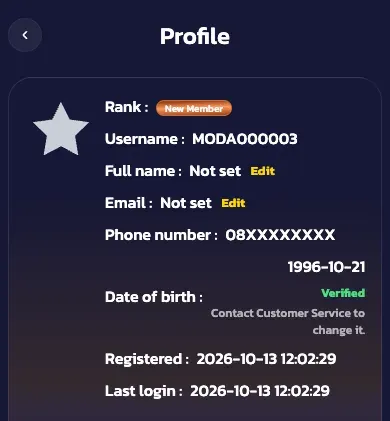
Section titled “Player birthday”A player’s birthday is optional. The player can set or change it until staff verify it.
-
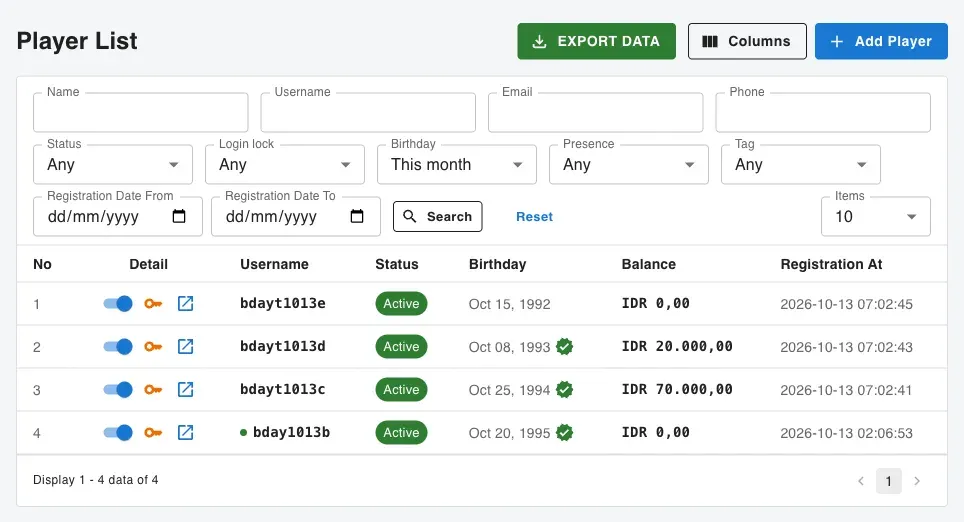
Column - open Columns and tick Birthday to show it in the list. It is hidden by default. A green mark means the birthday is verified.
-
Filter - set Birthday to This month to list players whose birthday falls in the current month.
-
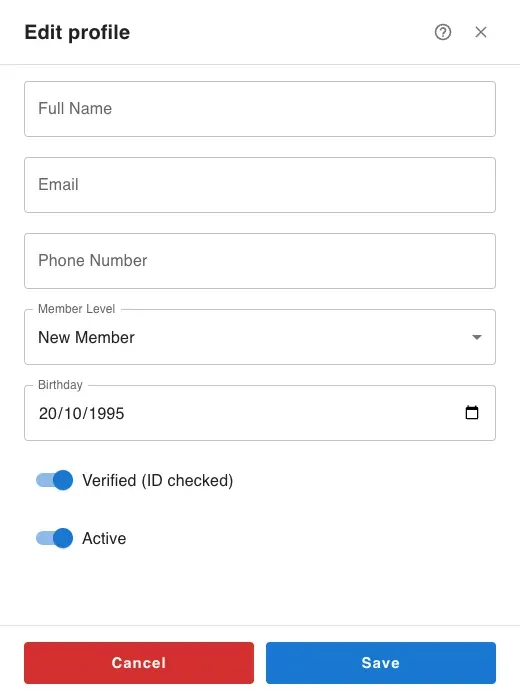
Verify - open a player, choose Edit profile, check the birthday against the player’s ID document, then turn on Verified (ID checked) and save.
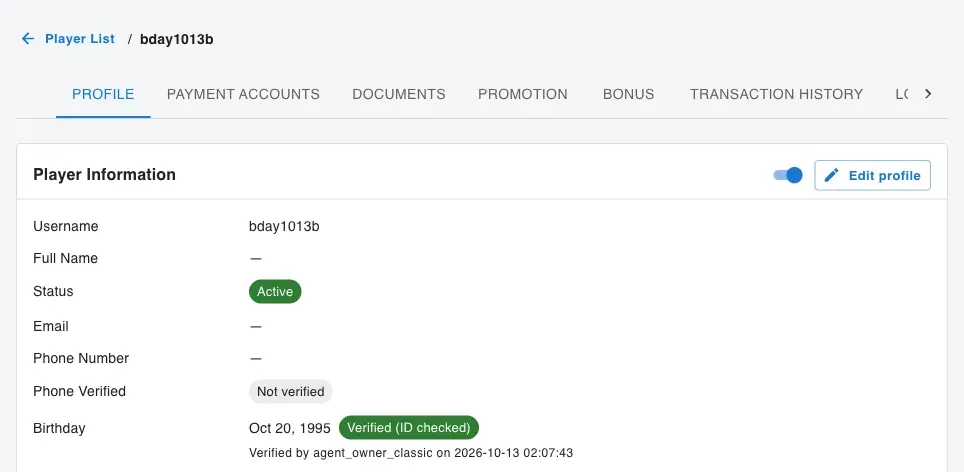
After you save, the player’s profile shows the birthday with Verified (ID checked), who verified it and when:
-
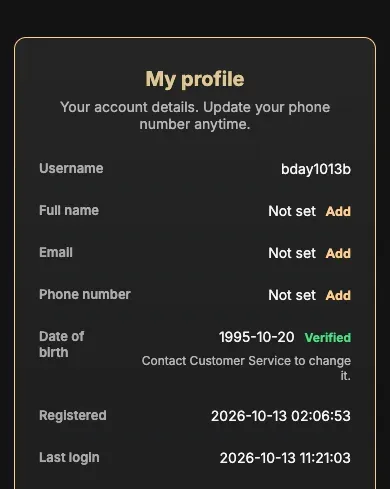
Locked once verified - the player can no longer change a verified birthday. Only staff with the permission below can change it or remove the mark.
Classic
Modern
The Verify player birthday permission, under Player List in the role editor, controls the switch. Owners have it. Any other role has it only when it is ticked in the role editor.
A birthday is hidden like the email and phone number. Staff see the date only
with the Reveal contact details permission or the Verify player birthday
permission. Without either, the date shows as ******, and the Birthday filter,
the Birthday export columns and the Birthday input in Edit profile are not
offered.
Who sees phone numbers
Section titled “Who sees phone numbers”The Reveal contact details permission decides who sees a player’s email and
phone number. Without it they show as ******, and the Email, Phone and
Account No. filters are not offered: a search by part of a number would spell
the number out. Each search by email, phone or account number is written to the
activity log, without the value searched.
An e-wallet’s account number is the player’s phone number. In Payment
Accounts it shows only its last four digits, for example ****1234, unless
the role has Reveal contact details or the Withdrawals Approve / reject /
settle permission, which pays out to that number. Bank account numbers show in
full as before.
A player confirms their own email from their profile, with a 4-digit code sent to it. Only a confirmed email can reset a forgotten password from the site’s Forgot Password page, and it can belong to one player on your site.
- Email Verified on the player’s Profile tab shows whether it is confirmed, and when.
- Changing it clears the confirmation. If you edit a player’s email, they must confirm the new one before it can reset their password.
- No confirmed email? The player resets through your support channels, as before.