Tracking & Pixels
What it does
Section titled “What it does”Every ad and analytics platform your site reports to, in one place: Meta, TikTok and Google Analytics 4, each with your own account. An enabled platform loads its tag on your player site (the Meta pixel, the TikTok pixel, the GA4 tag). Add its access token or API secret and Legion also reports conversions server-side, straight to the platform, so they still arrive when a browser blocks the tag. Google Tag Manager containers are set per domain, on this page too.
Where to find it
Section titled “Where to find it”Marketing -> Tracking & Pixels
At a glance
Section titled “At a glance”The top of the page shows, for each platform, whether its tag runs on your site and whether server events are on. The tag needs the platform switched on with its ID; server events also need the token or API secret. The Google Tag Manager row counts the domains that load a container.
Common tasks
Section titled “Common tasks”Each provider is its own card with its own Save, so setting up one doesn’t touch the others.
- Find the provider card you want to set up (TikTok or GA4).
- Enter the provider’s ID field(s) — see What each provider needs below.
- To also send events from the server, paste the access token or API secret into the secret field.
- Turn on the Enabled switch.
- Click Save on that card.
Setting up Meta for the first time? Follow the sections from Get your Meta values to Avoid double counting in Meta: they take you from an empty Meta account to a tested setup.
What each provider needs
Section titled “What each provider needs”- Meta (Facebook) pixels - up to five, each a Pixel / Dataset ID with its own access token from Meta Events Manager. Optionally, a label and a Graph API version (e.g.
v21.0). - TikTok Pixel & Events API - Pixel Code (required). An access token from TikTok Events Manager adds server events. Optionally, a test event code.
- Google Analytics 4 - Measurement ID (
G-XXXX, required, from the GA4 web stream). A Measurement Protocol API secret adds server events.
Each platform needs only its ID to be switched on: enabling a card without it is rejected, and the page says so. With no access token or API secret, only its tag on your site runs. Each enabled TikTok or GA4 card says which it is - Server events: ON, or Server events: OFF - no token or API secret stored (browser tag only). A Meta pixel row reads Browser only.
Google Analytics 4 and Google Tag Manager
Section titled “Google Analytics 4 and Google Tag Manager”The Measurement ID loads the GA4 tag (gtag.js) on every page of your player site, after the page has finished loading. Page views on in-site navigation come from GA4’s own enhanced measurement, so leave Page changes based on browser history events on in the GA4 web stream. The Measurement Protocol API secret additionally sends sign-ups, logins, deposits (as purchase) and withdrawals from the server, keyed by the player’s ID.
A Google Tag Manager container is set per domain, on this page: the Google Tag Manager card lists every domain that serves your site, each with its container id and its own Save. On a domain that loads a container - or whose head or body script (in Site Settings -> Domain Setting), or the site’s custom script, already loads GTM or gtag.js - the GA4 tag is not loaded: put GA4 inside the container instead, or every page view would be counted twice.
What Legion sends
Section titled “What Legion sends”With each conversion (registration, login, game launch, deposit, withdrawal) Legion sends the details a platform uses to match it to the person who saw your ad:
- the player’s email, phone number (with your market’s country code, e.g. +62), first and last name, date of birth and country - each one hashed before it leaves Legion, and only when the player has it. The holder names and phone numbers on the player’s saved bank accounts are sent as well, and an e-wallet’s number when it is a mobile number, next to the ones they registered with;
- the player’s city, region and postal code, hashed the same way. These are estimated from the player’s connection;
- the player’s IP address, browser, the page they were on and the ad click id. For a deposit or withdrawal these, and the city, region and postal code, are taken when the player submitted it, not when it was approved.
Meta receives all of these, and the player’s ID, hashed. When a player is signed in, the Meta pixel on your site also passes their hashed details, so Meta matches their visits to the same person. TikTok receives the email, the registered phone number, the player’s ID, IP address, browser, page and click id. GA4 receives only the player’s ID.
About the secret
Section titled “About the secret”The access token / API secret is stored encrypted and is never shown again after you save. The card shows whether one is stored - Set with a masked preview such as EAAa****ZDZD (first and last four characters, only for secrets of 16 characters or more), or Not set.
- To keep the current secret, leave it as it is when you save other changes.
- To replace it, click Replace, paste the new value and save. Cancel keeps the stored one.
- To remove it, click Clear and save. The platform keeps loading its tag on your site; only its server events stop.
Get your Meta values
Section titled “Get your Meta values”Get the Dataset ID, the access token and the test event code with the Meta setup guide, from creating the dataset to the test event code.
Add your pixel
Section titled “Add your pixel”On this page, in the Meta (Facebook) pixels section, click Add pixel. In the drawer that opens:
- Pixel / Dataset ID - the Dataset ID.
- Label - optional, a name you will recognise, such as the ad account.
- Access token - paste the token. Without one the pixel runs in the browser only.
- Click Add pixel. The pixel joins the list, switched on.
A site can have up to 5 pixels, one row each, showing its label, ID, status and on/off switch. Click a row to change its token or Graph API version (leave that empty to use Legion’s default), to send a test, or to Remove it with its token. Every enabled pixel gets the same events, each sent with that pixel’s own token, so a bad token on one pixel never stops the others.
The status on each row is Delivering, Failed, No events yet (a token is stored, nothing sent so far), Browser only (no token) or Off. A failure gives a short reason on the row; open the row and click Detail to see Meta’s own reply. The same Pixel / Dataset ID also loads the Meta pixel on your site, so you do not need to install the pixel anywhere else.
Saving does not check the token with Meta: a mistyped, revoked or wrong-dataset token still saves and switches on, then silently sends nothing. The test below is how you find out.
Choose the tracking mode
Section titled “Choose the tracking mode”The Tracking mode card under the Meta pixels section decides who reports registrations and deposits to Meta. It saves as soon as you click an option.
- Built-in - Legion sends CompleteRegistration, Purchase and FirstDeposit itself, from the server and (for CompleteRegistration and Purchase) from the browser too, with a shared event ID so Meta counts each one once. Purchase and FirstDeposit carry the deposit amount and your currency.
- Event Setup Tool - you build registration and deposit events with rules inside Meta. Legion sends none of those three events, from the browser or the server.
Login, ViewContent (game opened) and Withdraw go from the server in both modes.

Test your pixel
Section titled “Test your pixel”Real player events never carry a test event code, so they do not appear in the Test events tab: they show on the dataset’s Overview. To see your setup work right away, send a test from the panel.
- In Meta Events Manager, open the dataset’s Test events tab, select Website and keep the tab open. Events sent while it is closed still reach Meta, but are not listed there. Copy the code after
test_event_code:(step 5 of the setup guide shows where). - On this page, click the pixel’s row. Paste the code into Test event code, beside Send test event, and click the button.
One click sends every server event in one request, so you see them all without registering or depositing: CompleteRegistration, Login, Purchase, FirstDeposit, Withdraw and ViewContent. It sends them with the pixel’s saved Pixel / Dataset ID and access token and the code you pasted, and shows Meta’s own reply in the drawer, with the events sent and how many Meta received.
The code goes out with that one request and is not saved. It is gone when you close the drawer, so there is nothing to clear afterwards.
None of the events belongs to a player. The ViewContent is named “Panel test event”, and Purchase, FirstDeposit and Withdraw carry a value of 1 in your currency. They carry only an External id, IP address and User agent as match details.
The test sends all of them in either tracking mode. In Event Setup Tool mode Legion does not send CompleteRegistration, Purchase or FirstDeposit for real players, and the reply says so.
Meta does not drop test events: it keeps them for targeting and ads measurement, even with a test event code. So send the test while you set up, and do not repeat it on a pixel with live campaigns.
The reply is one of:
- Meta accepted the test events - the token, the dataset and the code work, and the events appear in the Test events tab.
- Meta took the request but reported a problem - Meta received fewer events than were sent, or its message is shown under it. The usual message says the code does not match an active Test Events session: check that the tab is open with Website selected and that the code you pasted is this dataset’s, then send again.
- Meta refused the test events - a short reason, with Meta’s error and its code under Detail. An invalid access token (code 190) means paste a new token and save; an error about the dataset means the Pixel / Dataset ID is wrong.
The button stays greyed out until you have pasted a code and the pixel has a saved access token, and while the drawer has unsaved changes. It works while the pixel is switched off, so you can check a setup before you switch it on. A site can send the test 5 times every 10 minutes.
On each row in the Test events tab, check:
- the status is Processed;
- Received From reads Server;
- open the row and read User data keys: External id, IP address and User agent.
Browser events appear in that tab only for a visit you open from the Confirm your website’s events are set up correctly box on the same tab.
Real events
Section titled “Real events”Real events show on the dataset’s Overview; real server events never appear in the Test events tab. The table is for Built-in mode. In Event Setup Tool mode Legion sends no CompleteRegistration, Purchase or FirstDeposit.
| What a player does | Meta event | Sent from |
|---|---|---|
| Register | CompleteRegistration | Server, and the browser on the next page the player opens |
| Sign in | Login | Server |
| Open a game | ViewContent, with the game in content_ids and content_name | Server |
| Deposit credited | Purchase, with value and currency | Server, and the browser while the player has your site open (or the next time they open it, within 24 hours of submitting the deposit) |
| First credited deposit | FirstDeposit, next to the Purchase, with the same value and currency | Server |
| Withdrawal paid | Withdraw, with value and currency | Server |
| Open a promotion’s page | ViewContent, with content_type promotion | Browser |
| Any page | PageView | Browser |
A deposit is reported when it is credited, not when the player submits it. Registering does not send Login - only signing in does. An event sent from both the server and the browser has the same Event ID on both, and Meta counts the pair once.
The match details Legion sends with a real event, under the names Meta uses:
| User data key in Meta | What it is |
|---|---|
| the player’s email | |
| Phone | the player’s phone, and the phone numbers on their bank accounts and mobile e-wallets |
| First name, Last name | the player’s name, and the holder names on their bank accounts |
| Date of birth | the player’s date of birth |
| City, State, Zip code | estimated from the player’s connection |
| Country | your market’s country |
| External id | the player’s ID in Legion |
| Click id | the ad click id, when the visit came from an ad |
| Browser id | the cookie the Meta pixel sets on your site |
| IP address, User agent | the player’s connection and browser |
All of them except Click id, Browser id, IP address and User agent are hashed before they leave Legion. A key is left out when Legion has no value for it.
Avoid double counting in Meta
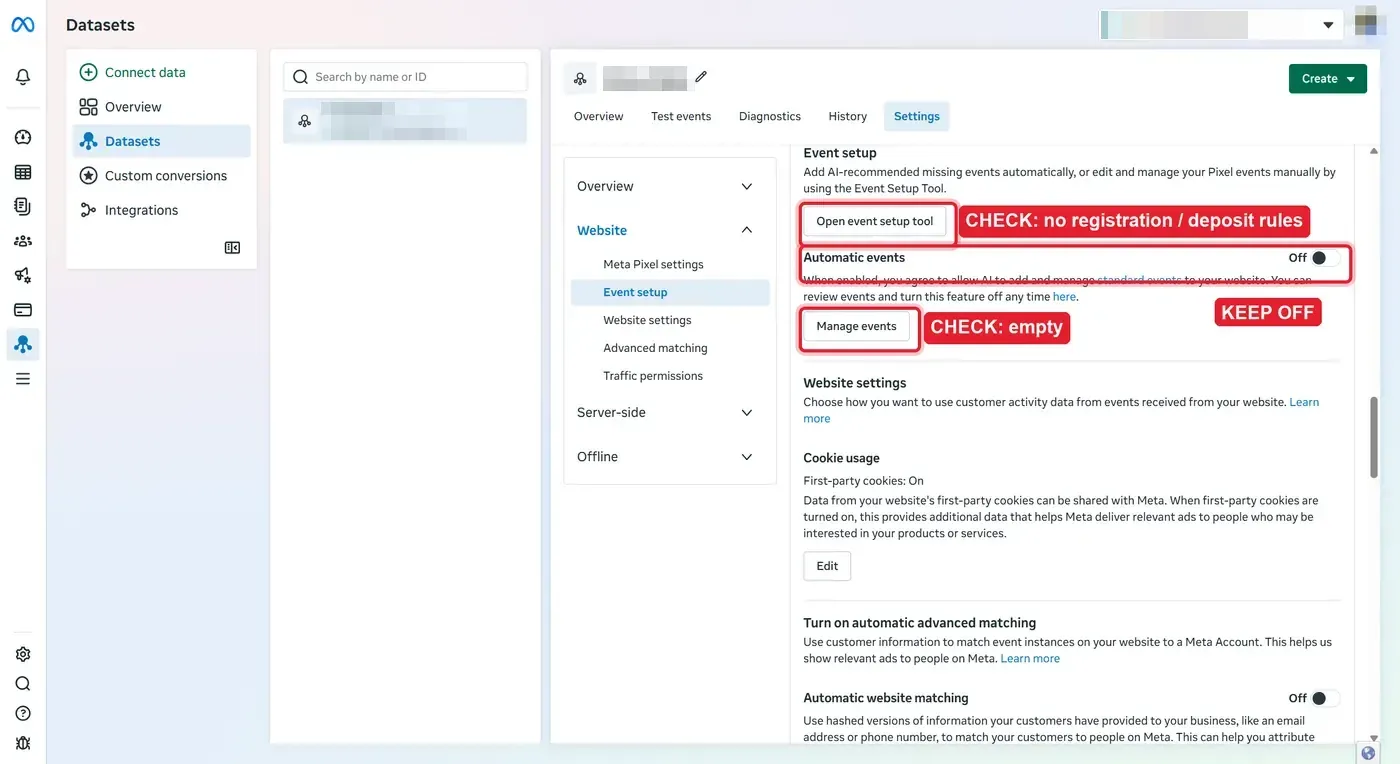
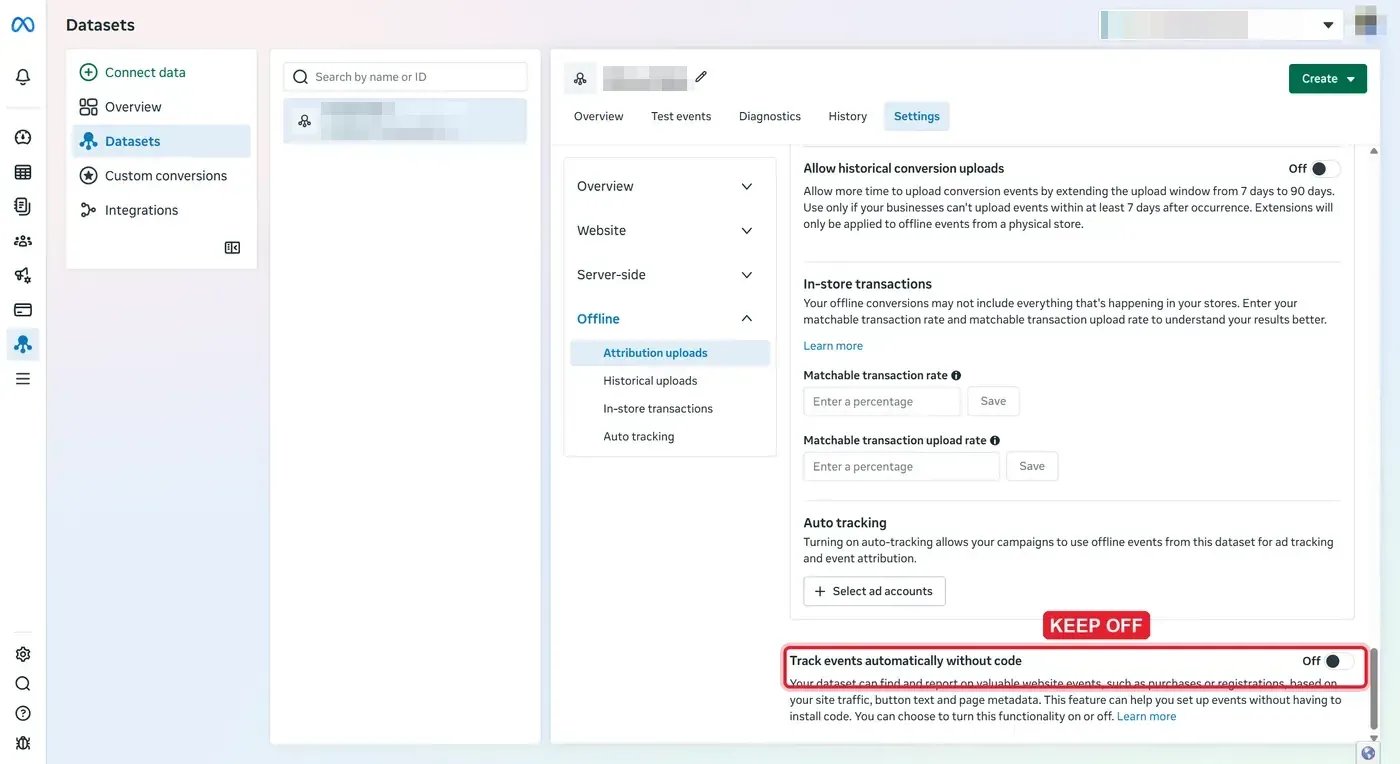
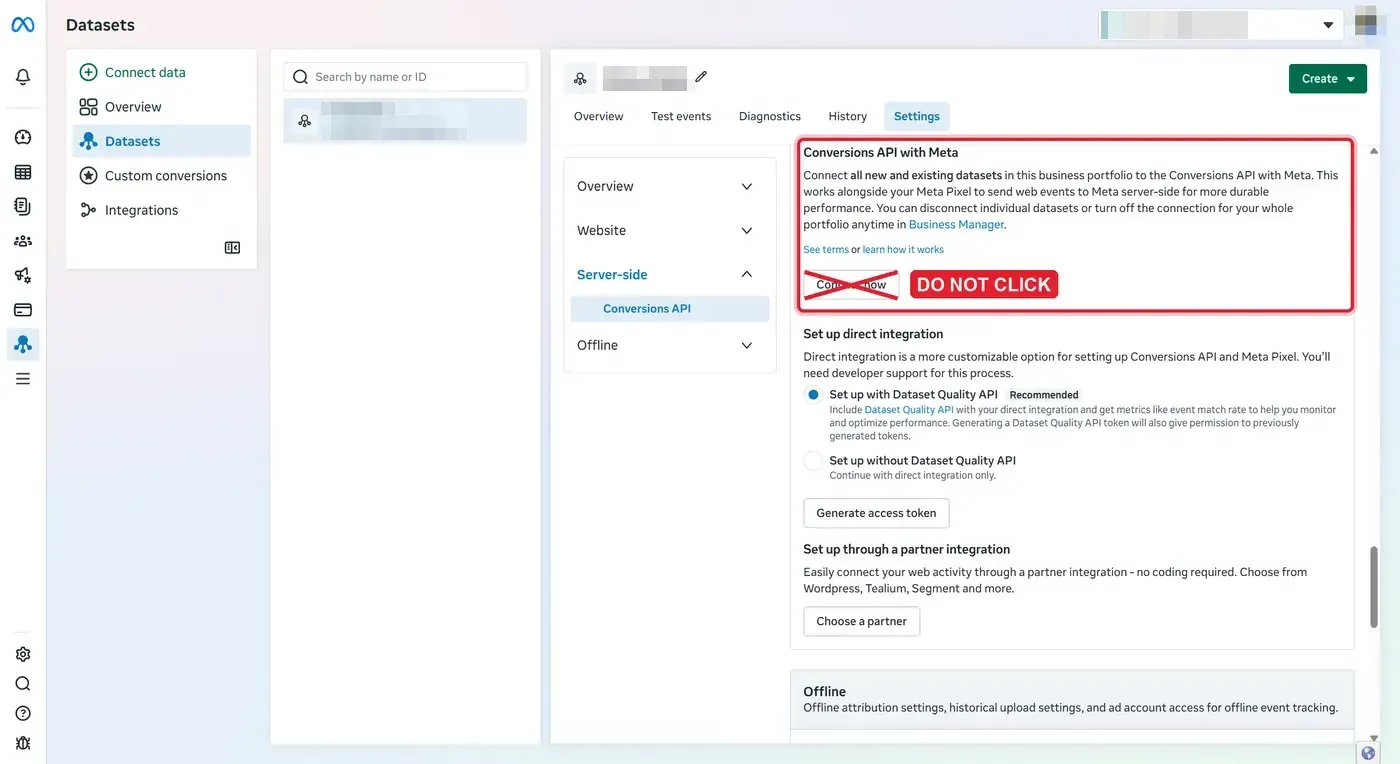
Section titled “Avoid double counting in Meta”In Built-in mode Legion already sends your registrations and deposits, so nothing in Meta should create them a second time. In the dataset’s Settings tab, check:
-
Website - Event setup: Automatic events is Off, Open event setup tool has no rules for registration, sign-up, deposit or purchase, and Manage events is empty.
-
Offline, at the bottom of the Settings tab: Track events automatically without code is Off.
-
Server-side - Conversions API: “Conversions API with Meta” is not connected. Do not click Connect now.
-
Do not install the same Meta pixel a second time through a head script or Google Tag Manager. Legion already loads it from the Pixel / Dataset ID on this page.
Turning on Automatic website matching (under Website - Advanced matching) is fine and helps Meta match more visits.
If nothing shows up
Section titled “If nothing shows up”- The Test events tab was closed, or not on Website. Open it, select Website, and send the test again.
- The test event code does not match. Each dataset has its own code. Compare the code on this dataset’s Test events tab with the one you pasted, and check the Pixel / Dataset ID is this dataset’s.
- Real server events are not in the Test events tab. They never are: only Send test event lists them there. Look on the dataset’s Overview.
- Browser events arrive but no server events. The access token is wrong, revoked or belongs to another dataset. Generate a new one on this dataset, click its row, click Replace, paste it and Save.
- The row reads Browser only. No access token is stored: open the row, paste one and Save. If it reads Off, the pixel is switched off.
- Login and ViewContent arrive for real players, but no CompleteRegistration, Purchase or FirstDeposit. The tracking mode is Event Setup Tool. Switch to Built-in if Legion should send them.
- No Purchase yet. It is sent only once the deposit is credited.
- Meta’s Diagnostics tab on the dataset lists problems Meta found with the events it received.
Related
Section titled “Related”- Domain Setting - each domain’s head and body scripts.