Support Assistant
What it does
Section titled “What it does”Reads a chat and decides which of your canned responses answers it, or that none of them do.
By default it never writes anything. It picks a response you wrote, and Legion sends that, in the language the player wrote in, exactly as your team approved it. When nothing fits, it asks itself once more, and if there is still nothing it hands the chat to your team.
It writes its own words only if you turn on Full auto (see below), and even then only behind checks that refuse anything risky.
It uses your own account with an AI provider, so you see the bill and you control the limits.
Where to find it
Section titled “Where to find it”Support -> Support Assistant
Common tasks
Section titled “Common tasks”- Create an account with one of the supported providers and generate an API key.
- Pick the service and enter the model name your provider gave you.
- Paste the API key.
- Write your instructions - see below.
- Click Save, then Test to check the service, the key and the model.
- Leave the mode on Suggest to the operator for the first week.
- Turn on Assistant is on and click Save.
- Go to Support -> Chat Automation and add a rule whose action is Ask the assistant. Nothing happens until a rule uses it.
- Write a short description on each canned response the assistant may choose - see Canned Responses. The description is what it reads to choose.
Get a z.ai Coding Plan API key
Section titled “Get a z.ai Coding Plan API key”If you use the z.ai GLM Coding Plan, the key must come from the plan’s own tab. A key from the wrong tab saves without complaint, but is billed to a different balance.
-
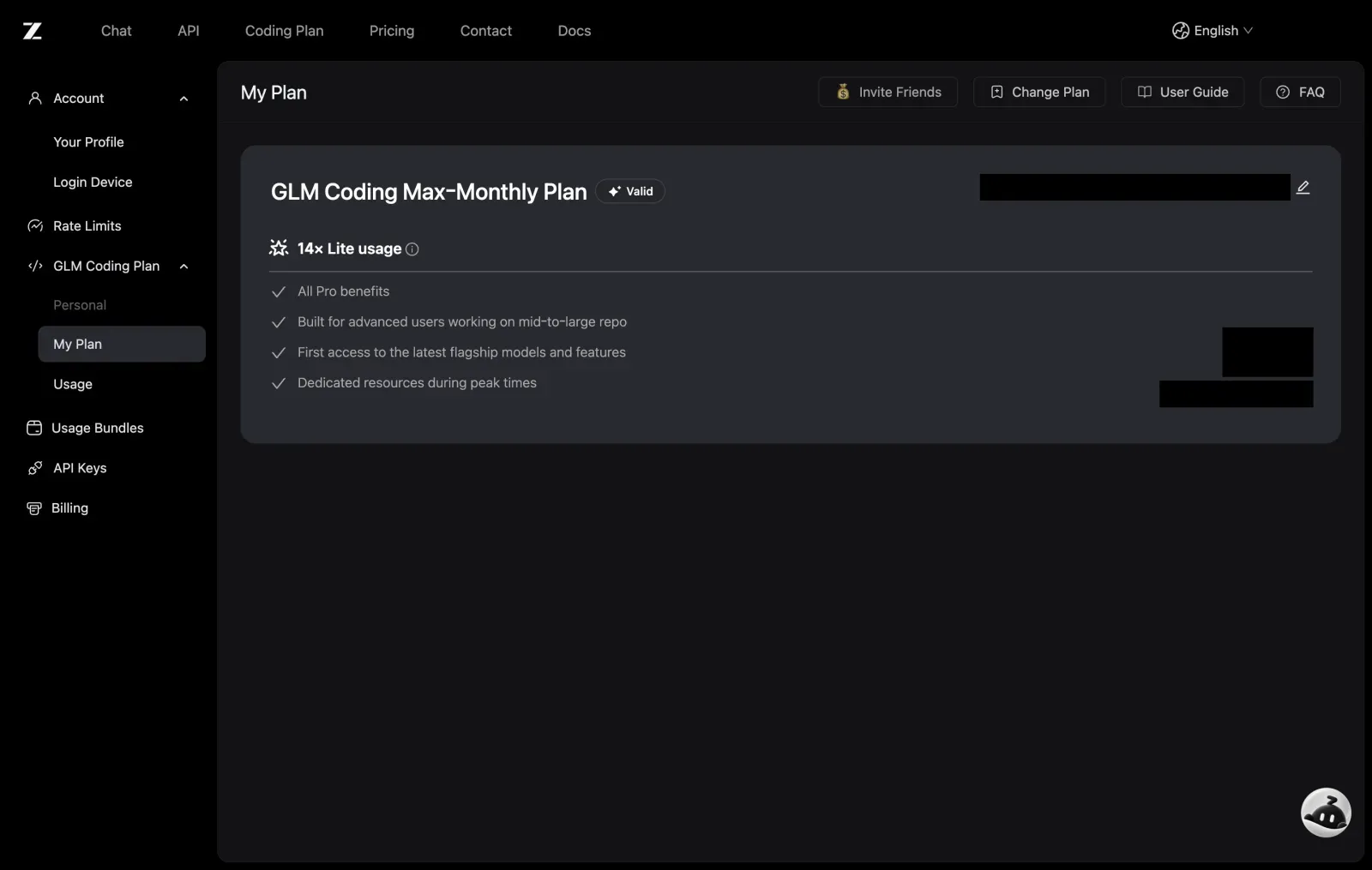
Log in to z.ai and open GLM Coding Plan -> My Plan. Check that your Coding Plan shows Valid.
-
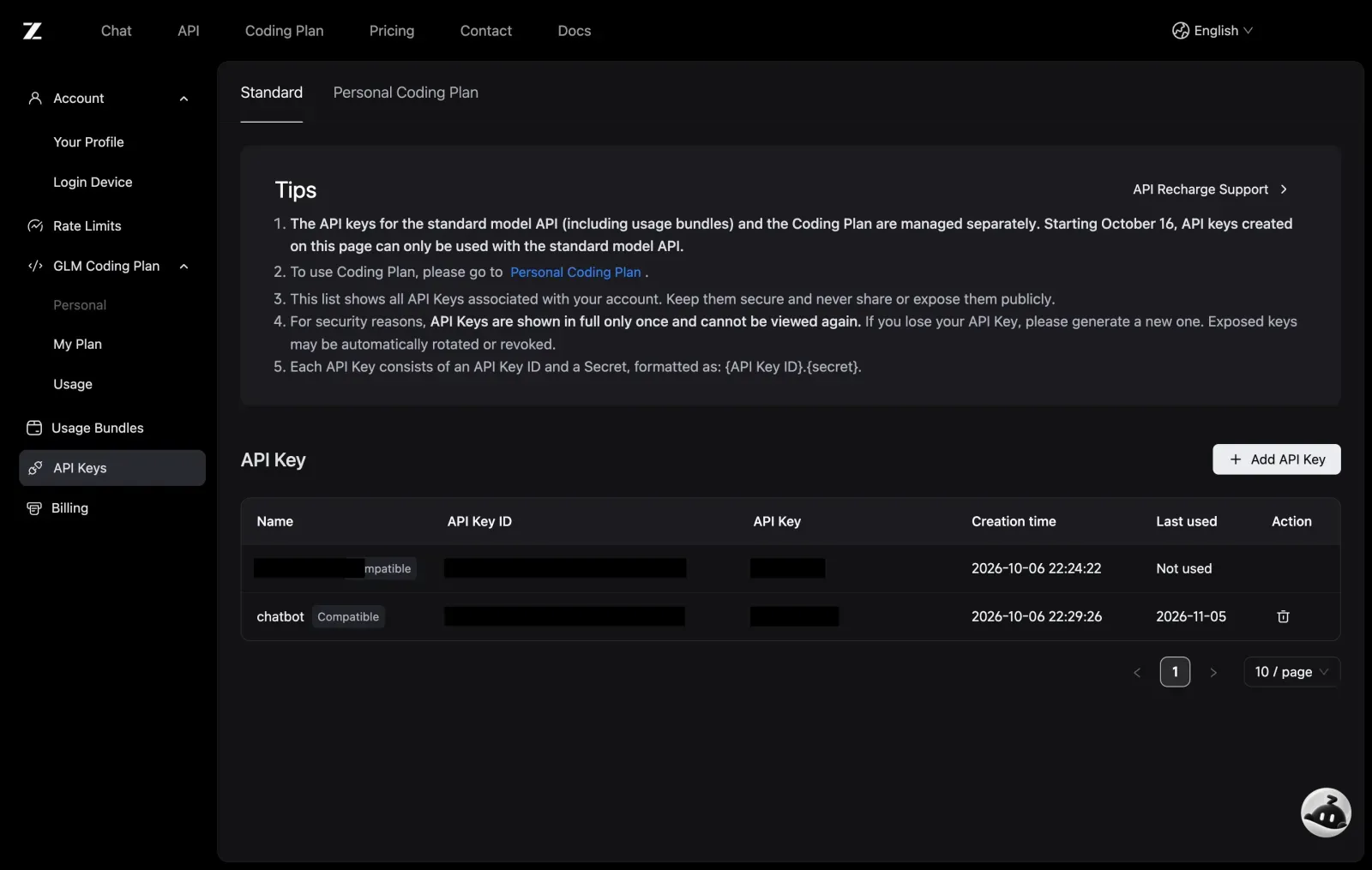
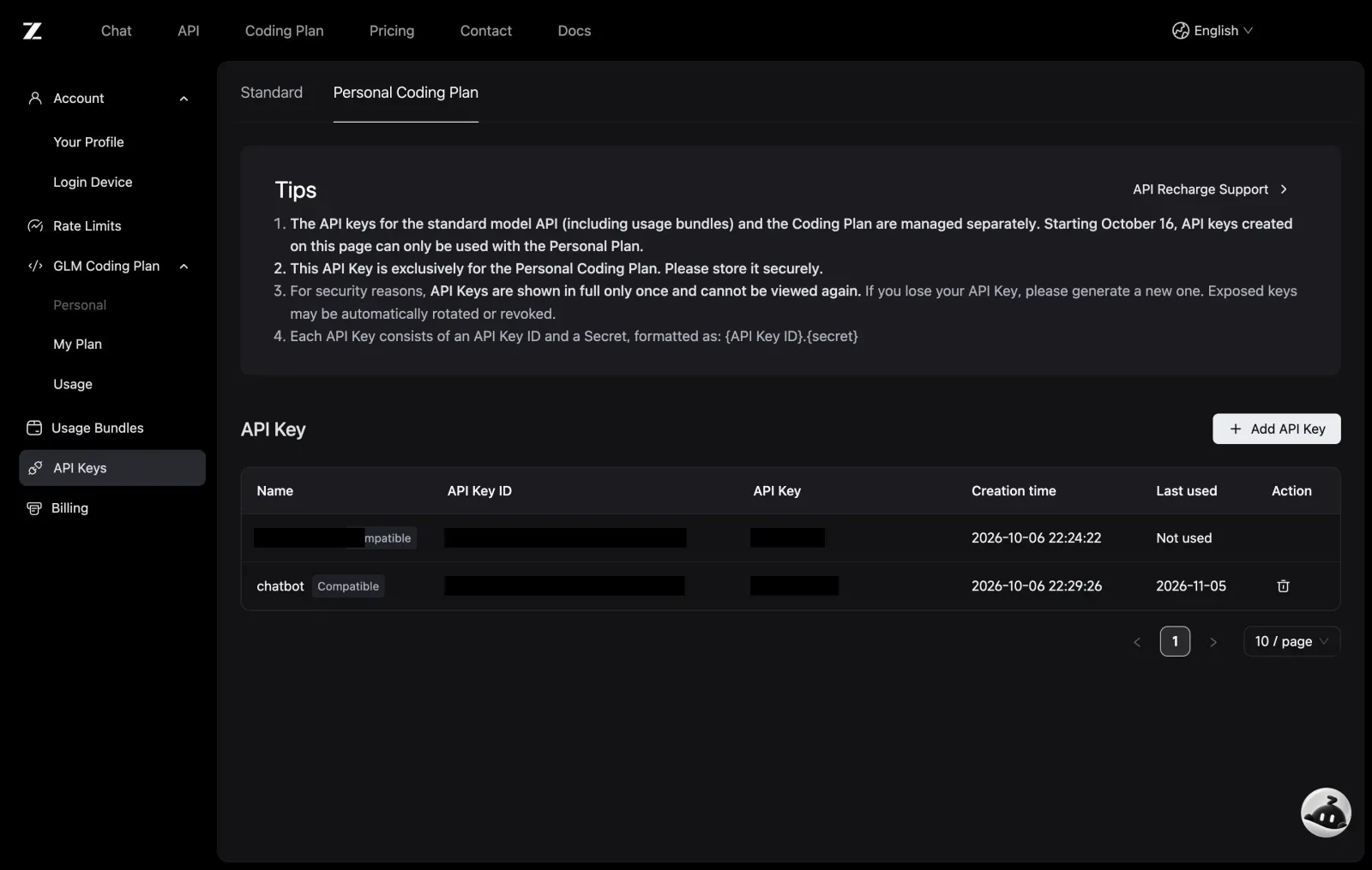
Open API Keys and choose the Personal Coding Plan tab. Do not use the Standard tab: keys created on it since 16 October work only with z.ai’s pay-as-you-go balance, and Test fails with error 1113 “Insufficient balance or no resource package”.
-
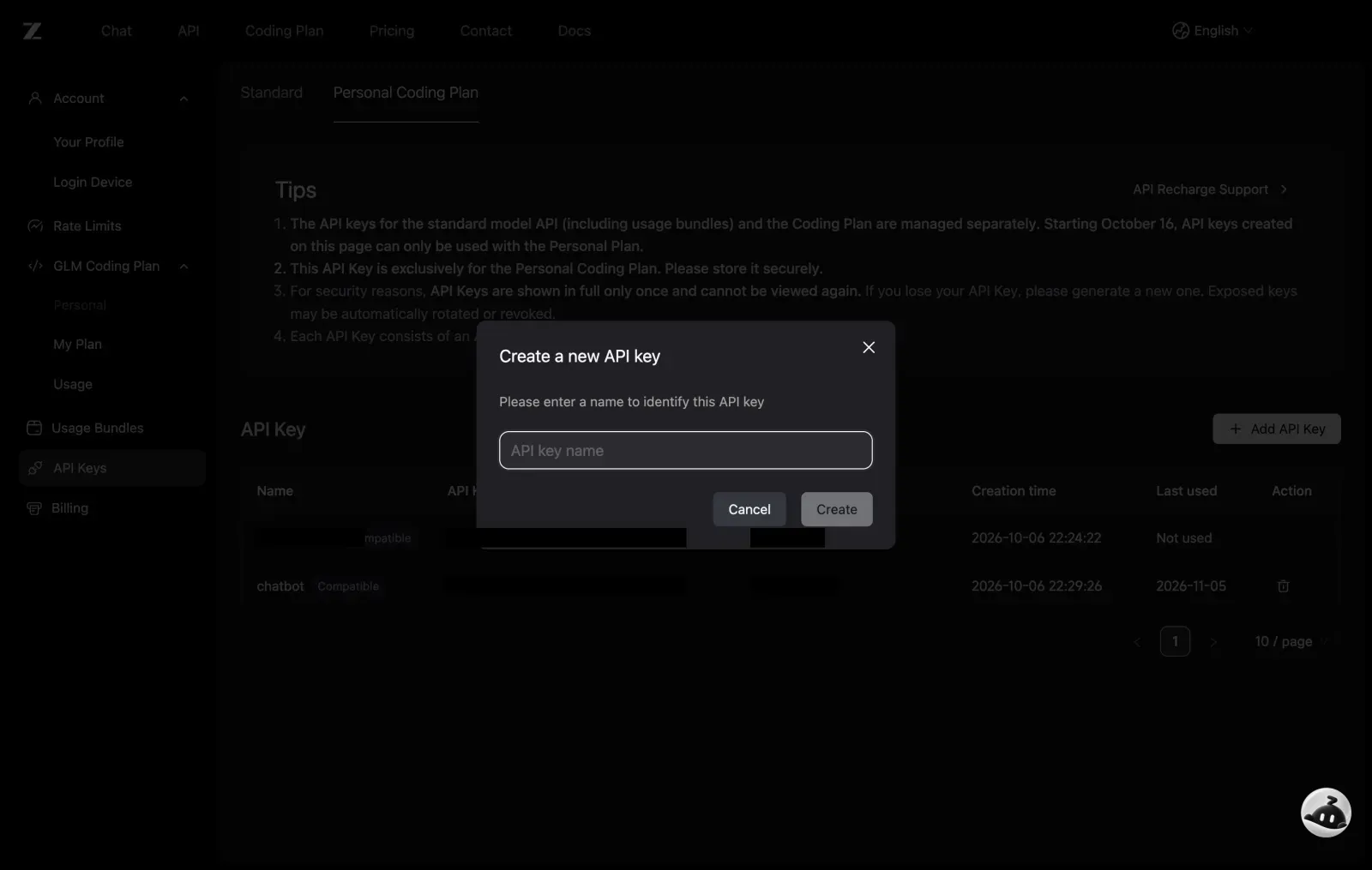
Click Add API Key, give it a name, and click Create. z.ai shows the full key only once, so copy it straight away. Never paste it into a chat or a group.
-
On this page, set Service to
api.z.aiand Model toglm-5.3-flash, in lower case. Paste the key into API key (if a key is already stored, click Replace first). Click Save, then Test: all three checks should pass. If it still shows error 1113, the key came from the Standard tab, or from a z.ai account that has no Coding Plan.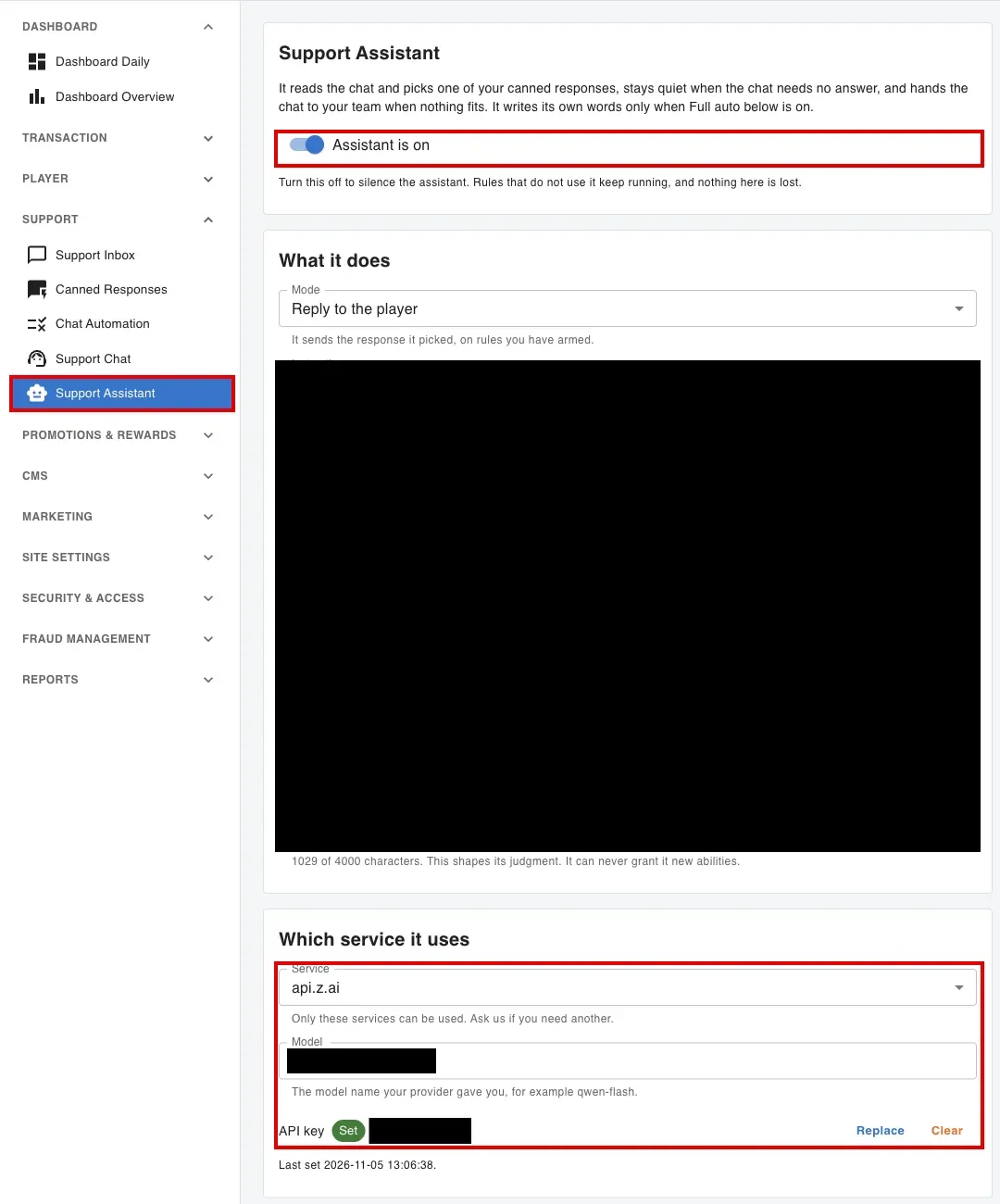
The two modes
Section titled “The two modes”- Suggest to the operator - nothing is sent to the player. The assistant’s choice is posted in the chat as an internal note that only your team sees, so you can watch its judgement against real chats before it speaks to anyone. Start here. It costs the same as replying.
- Reply to the player - it sends the response it picked, on rules you have switched on.
A rule that sends one fixed response, without asking the assistant, sends it in both modes: that reply is your decision, not the assistant’s.
How it decides
Section titled “How it decides”For each player message that reaches an Ask the assistant rule:
- It reads the chat and picks a response from that rule’s list, or decides the latest lines need no answer.
- A response is only sent if the player’s record backs it (see record checks on Canned Responses). On this first pick, a response used up for this visit is not sent.
- If nothing fits and Full auto is on, it writes a short reply.
- Otherwise it gets one last ask, told why its first choice was not used. The last ask may still send a response that is used up for this visit, or a please-wait reply past its cap, rather than hand over.
- If that still gives nothing, it hands the chat over: it posts an internal note explaining why, and sends your handover response to the player if you wrote one. From then on it stays out of that visit until someone on your team has replied.
A visit is one stretch of a chat: it ends once no reply has gone for 6 hours, even if the chat stayed open, and closing a chat does not end it. Every limit below counts per visit. The first reply of a newly opened chat is not held back by a comfort or please-wait share the visit already spent.
The instructions box
Section titled “The instructions box”This shapes its judgement: which kinds of question matter, what your brand does and does not do, when to leave something to a person.
It cannot give the assistant new abilities. The list of responses it may send lives on each rule, not here, so no wording in this box widens what it can do.
Your API key
Section titled “Your API key”Stored encrypted, and never shown again - not to us, not to you. The page shows whether a key is stored, with a masked preview such as sk-p****0123 so you can tell which key it is. If you lose it, generate a new one with your provider and paste that with Replace.
Click Clear and save to remove it. The assistant stops immediately; your rules that do not use it keep working.
Pictures
Section titled “Pictures”When a player sends a picture - a transfer slip, an error screen - the assistant’s own model reads it once into text, and that text is kept. Every later request reads the text, so a picture is never paid for twice. If the backup is set up, it reads a picture the main model could not. A model that cannot read pictures at all is noted once and the picture is left out after that, so if your players send pictures, pick a model that reads them.
Backup model
Section titled “Backup model”Asked when the main model fails, times out or is busy. Pick its own service, model and key; it is used only once all three are set.
The backup key is stored the same way as the main one: encrypted, never shown again, shown as Set with its preview, and removable with its own Clear.
If the backup fails several times in a row it is paused on its own for a few minutes, separately from the main model.
Full auto
Section titled “Full auto”Off unless you turn it on. When none of your canned responses fits, a second request writes a short reply in the player’s language, guided by the writing instructions box.
What it writes is checked before it is sent, and refused if it:
- contains a number of two or more digits that the chat did not already show (so it cannot invent an amount, a date or a reference),
- contains a link,
- contains a template marker such as
{{ }}.
When someone on your team has to act - a credit, a refund, a change of bank details - it sends no response and writes nothing: the chat is handed straight to your team, as in step 5.
Most written replies per visit caps how many it may write in one visit; past it, the chat goes to the last ask and then to your team. In Suggest mode a written reply is only posted as an internal note.
The limits
Section titled “The limits”- Most requests per day is counted in your own timezone. Past it, the assistant stays quiet until tomorrow and your other rules keep running.
- Most requests per visit stops one long visit spending the day’s budget: past it, the assistant makes no more requests in that visit. One player message can use several requests (choosing, writing, the last ask, reading a picture).
- Comfort replies per visit and Please-wait replies per visit cap the responses whose kind is Comfort or Please wait. Past the cap, comfort replies stop, and a chase moves on from the please-wait replies to the reason and last-line replies. Venting or chasing with nothing new in it may then be left unanswered.
- Give up after is how long it waits for an answer. It waits inside the natural pause before replying, so a slow answer does not make the player wait longer.
- Read delay, Extra pause on the first reply and Typing speed set how the assistant paces a reply. The model’s own time counts toward the read delay, and a long reply never types for more than a few seconds.
If the service fails several times in a row, Legion pauses the assistant for a few minutes and resumes on its own. Your settings are untouched - the page tells you when it will be back.
The Test button
Section titled “The Test button”Sends one small request to the saved main model and, if one is set up, the backup. Save first: it tests what is saved, not what is on the screen. Each request counts toward the daily limit.
Each one gets three separate answers:
- Service reachable - the service answered at all.
- Key accepted - the key was not refused.
- Model answered - the model you named replied in the shape Legion needs.
“Key accepted, model did not answer” usually means the model name is wrong.
Recent usage
Section titled “Recent usage”Requests, failures and tokens for the last seven days.
Check it first when the assistant seems quiet. “Switched off”, “over the daily limit” and “the service is failing” look identical from a chat window and need three different fixes.